
Video to Text Converter
Transcribe any video with AI
Taption is a browser-based video transcription tool that converts speech from MP4, MOV, YouTube videos and other video sources into editable, time-coded text. It supports more than 40 transcription languages, identifies speakers, and exports TXT, PDF, SRT, VTT or FCPXML, with nothing to install.
Try the free video to text converter
Upload an MP4, MOV or other video of up to 5 minutes and 200 MB.
More than 5 minutes or 200 MB? Sign in to Taption for up to 5 hours and 5 GB per file.
Have a YouTube link? Sign in to import it →
Only have an audio recording? Use audio to text →
Transcribe video to text online
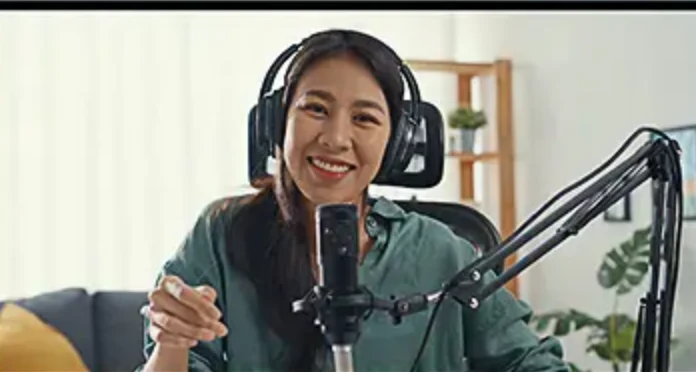
Convert MP4, MOV and YouTube videos to text
For MP4 to text transcription, upload the video directly—there is no need to extract the audio first. Taption also accepts MOV and other video formats, plus supported video links, and transcribes the speech directly.
| Video source | Typical use |
|---|---|
| MP4 / MOV | Phone and screen recordings, edited videos |
| MKV / AVI / WMV / WebM | Exported, archived and web videos |
| YouTube link | Transcribe a published video without downloading it |
| Google Drive / Zoom / video URL | Cloud files and meeting recordings |

Manual video transcription vs AI video to text
AI video transcription creates a timestamped first draft automatically, instead of requiring you to replay the video and type every line by hand.
| Manual transcription | Taption AI video to text |
|---|---|
| Switch back and forth between the video and your document while typing | Video and transcript side by side; click a line to jump to that frame |
| Break subtitles into lines and sync each one to the picture | Transcript split into subtitle lines and synced to the video's timecode |
| Scrub the timeline to find a scene | Search a word to jump to that moment in the video |
| Open an editing app to add the subtitles | Burn subtitles into the video, or send them to your editing app |


From video transcript to subtitles and edits
| Format | Best for |
|---|---|
| TXT / PDF | Video transcripts, notes, quotes and archives |
| SRT / VTT | Captions for YouTube, Vimeo and web players |
| FCPXML | Final Cut Pro editing timelines |
| JSON | Structured data with segment- and word-level timing, speakers and confidence scores |
| Customized format | Your own TXT or PDF layout of timecodes, line numbers, speakers and text |
| MP4 with burned-in subtitles | Clips ready to post |
Want the subtitles on the video itself? See add subtitles to video.
Transcribe videos for meetings, interviews, courses and content
- YouTube and creator videos: Turn spoken content into searchable transcripts, captions and reusable copy.
- Video interviews and research: Find quotes with speaker labels and timestamps, then check them against the recording.
- Meetings and webinars: Make recorded discussions searchable for review and documentation.
- Courses and lectures: Give students an editable, searchable reference for revision.
Your videos stay private
- Encrypted transfers: HTTPS for uploads and downloads
- Private processing: Content is used only for transcription
- User control: Delete files and transcripts anytime
- Security and compliance readiness: We are working toward SOC 2 Type II, ISO 27001 and HIPAA readiness.
See the privacy policy for how data is handled.
How to convert video to text in 3 steps
1. Upload a video or paste a link
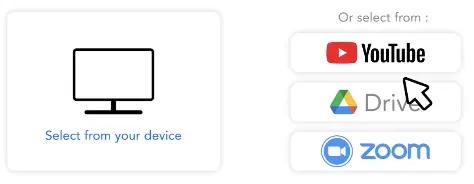
Upload an MP4, MOV, MKV or other video file, or paste a YouTube, Google Drive or direct video link. Then choose the language spoken in the video.
2. AI transcribes the video
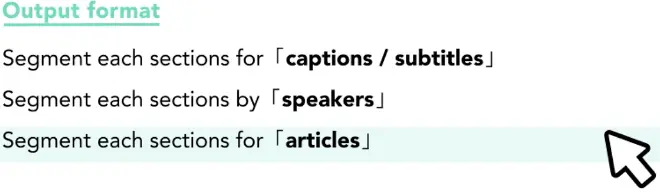
Taption’s AI video transcriber converts the speech in the video to text, adding timestamps, punctuation and paragraph breaks. For interviews and meetings, choose to split the transcript by speaker.
3. Edit and export
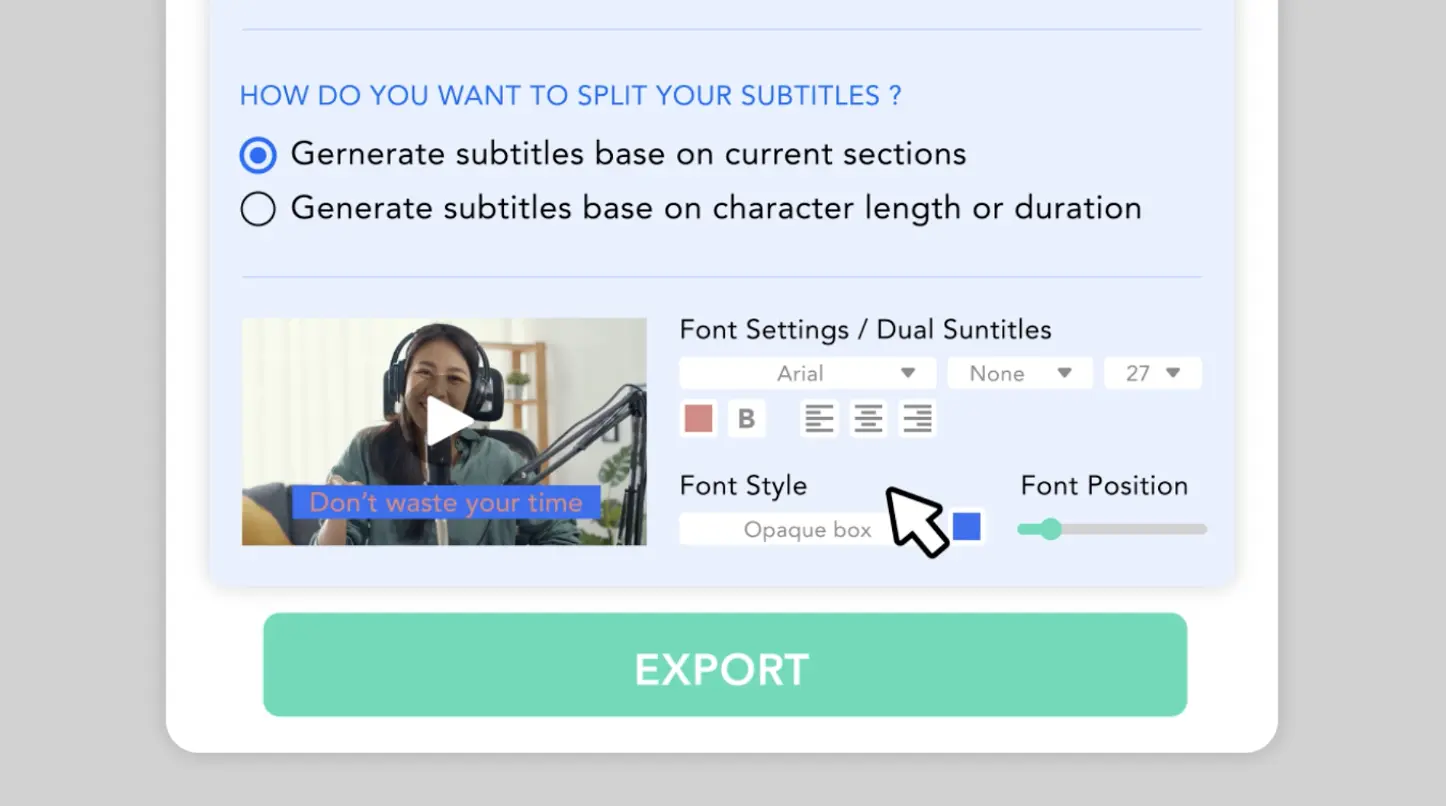
Play the video alongside the transcript to check it, then export a transcript or subtitle file, or burn the subtitles straight into the video.
Video to text tutorial: transcribe, edit and export
This 4-minute video walks through Taption from start to finish: upload a video, let AI transcribe it and split it into segments, then correct the text in the editor while the video plays, adjusting segments and timecodes as you go, and finally export subtitles or a transcript.
New to Taption? Watch it first, then try the free trial on this page with a video of your own.

Video to text FAQ
How do I convert a video to text?
Upload the video (or paste a YouTube link after signing in), choose the spoken language, and Taption returns an editable, time-coded transcript. To try it free, this page takes videos of up to 5 minutes and 200 MB.
Can I convert video to text for free?
Yes. Upload a video of up to 5 minutes and 200 MB on this page to preview its transcript for free, without a credit card. New accounts include 20 free transcription minutes in total, including any minutes used in this trial. Sign in to edit and export, or to transcribe longer videos. Once your free minutes are used, continued transcription requires paid minutes. See the pricing page.
Which video formats can I convert to text?
MP4, MOV, AVI, MKV, WMV, WebM, MPG/MPEG, M4V, FLV and OGG. You do not need to convert the video or extract its audio first.
How do I transcribe a YouTube video to text?
Sign in, choose Upload and paste the YouTube URL. Taption imports the video's audio and creates a transcript you can export as text or subtitles. The free trial on this page accepts uploaded files only.
How long can the video be?
The free trial on this page takes videos of up to 5 minutes and 200 MB. After you sign in, each file can be up to 5 hours and 5 GB.
Can Taption tell the speakers in a video apart?
Yes. For interviews, panels and meetings, choose to split the transcript by speaker, then name each speaker in the editor. See speaker identification for details.
Can I turn the video transcript into subtitles or translate it?
Yes. Export subtitle files, burn subtitles into the video, or translate the transcript into more than 50 languages for bilingual subtitles.
How accurate is video to text, and can I edit the result?
Accuracy depends on audio quality, background music and noise, accents and specialist terms. Every transcript opens in an editor where you can play the video, correct words and adjust timestamps.
What if I only have an audio recording?
Use audio to text for MP3, M4A and WAV recordings. The workflow is the same.