

ASpeaker A
Automatic Speaker Identification
AI meeting transcription
Taption offers browser-based AI speaker identification and diarization for audio and video. It separates different speakers, organizes transcripts and subtitles by speaker, lets you rename speakers and correct segments, and exports speaker labels and timestamps in TXT, PDF, SRT, or VTT.
Try Taption on your own recording
Upload a clip of up to five minutes and turn it into an editable transcript with speaker labels.
5 minutes free
Drop your recording hereor choose a file from your deviceMP3, WAV, M4A, AAC, FLAC, WMA, OPUSMP4, OGG, MOV, AVI, WMV, MPG, MPEG, M4V, FLV, MKV, WebMup to 5 minutes, 200 MB
More than 5 minutes or 200 MB? Sign in to Taption for up to 5 hours and 5 GB per file.
AI meeting transcription
Automatically identify speakers in meeting recordings or videos, so your transcripts and meeting minutes stay clear and readable—without manual cleanup.
Try Speaker Identification FreeTurn messy recordings into readable meeting minutes
- Built for real meetings: Handles fast turn-taking and natural conversation.
- Faster team alignment: Share speaker-labeled minutes shortly after the meeting ends.
- Privacy-friendly: Designed for internal and confidential discussions.
Speaker separation: automatically identify who spoke
Speaker separation is an AI capability that determines which parts of a recording belong to different speakers, then organizes the transcript by speaker.
- Standard transcripts: One long block of text that’s hard to follow.
- Taption transcripts: Segmented by speaker—easy to read like a script.
Especially useful for interviews, board meetings, and podcasts—reducing the time spent verifying who said what.
Best practices to improve accuracy and segmentation
Accuracy depends heavily on audio quality. For better meeting minutes:
- Use a quality microphone: Avoid laptop mics when possible and keep speakers close to the mic.
- Reduce background noise: Record in quieter rooms and avoid music or loud environments.
- Limit overlapping speech: When multiple people talk at once, separation becomes harder—take turns when possible.
Multiple inputs and export options
Input: Upload audio/video files (MP4/MOV/AVI/WMV/FLV/MPEG/MPG/OGG/MP3/WAV/M4A) or paste YouTube/Google Drive links.
Output:
- Transcripts: TXT, PDF (with speaker labels and timestamps)
- Subtitles & editing: SRT, VTT, FCPXML (speaker labels supported)
- Burned-in captions: MP4
More than transcription — a meeting transcript editor
After transcription, you can use Taption’s editor to:
- Search keywords and instantly find what “Finance” or “PM” said.
- Highlight key moments and take notes in-context.
- Share a link with teammates to collaborate on meeting minutes.
Upload a meeting recording or video
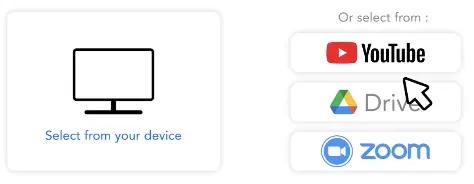
Import files from your device, YouTube, Google Drive, or Zoom. Supports MP4, MOV, AVI, WMV, FLV, MPEG, MPG, OGG, MP3, WAV, M4A, and more.
Enable speaker identification
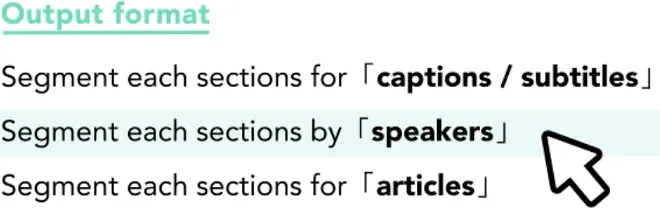
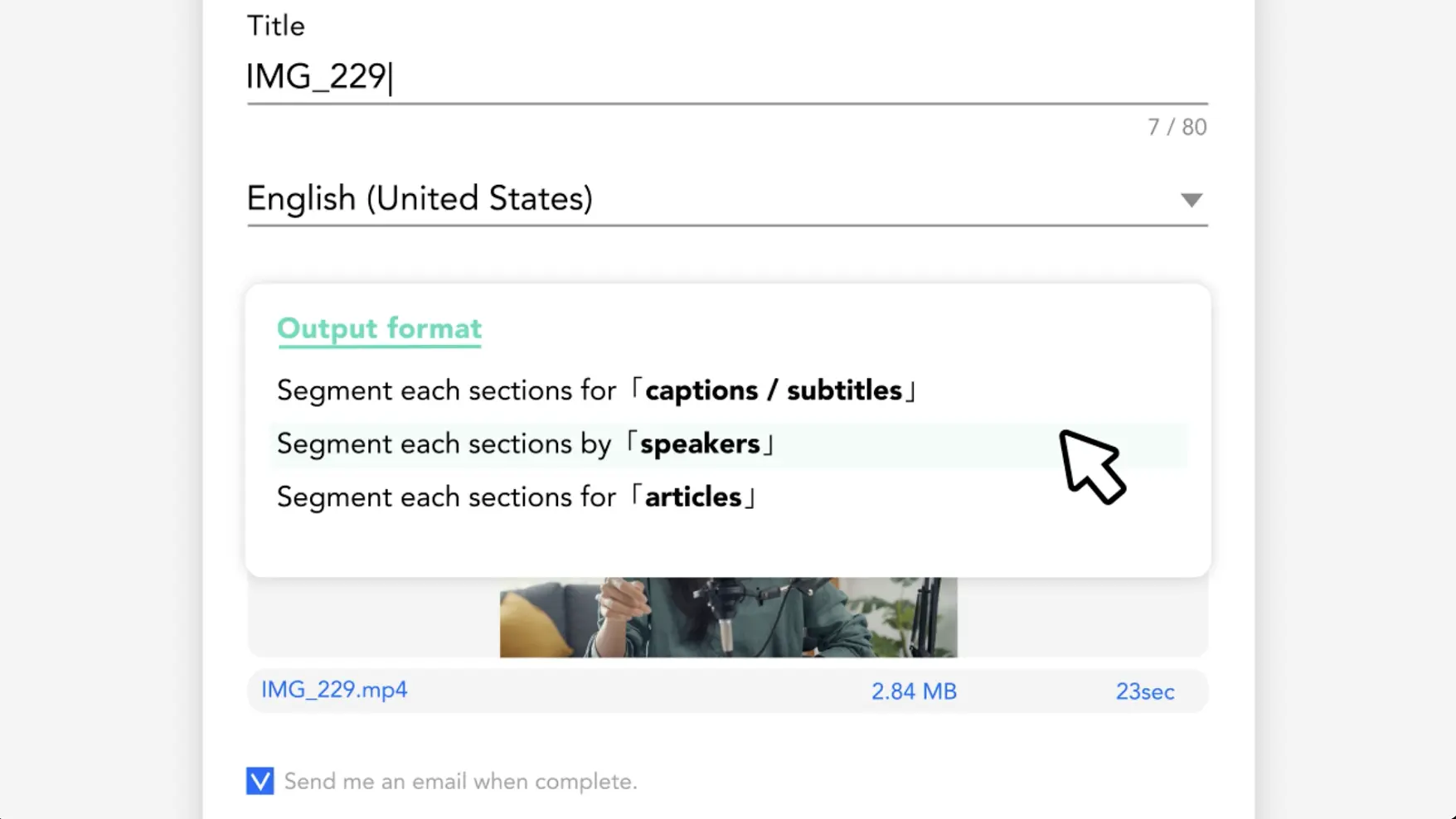
Taption automatically separates speakers based on voice characteristics and labels each segment—so multi-speaker conversations don’t turn into one long block of text.
Rename speakers and export
Replace "Speaker 1 / Speaker 2" with real names or roles (Host, PM, Finance), then export speaker-labeled TXT/PDF transcripts or SRT/VTT subtitles—and optionally generate burned-in MP4 captions.
How to automatically label speakers with AI
Transcript preview: with vs. without speaker labels
Standard transcript (no speaker labels)
Okay let's start the meeting first agenda item is next quarter budget I think we should increase marketing spend but I'm worried about cash flow let's review the numbers...
Taption transcript (speaker-labeled)
【Host】Okay, let’s start the meeting. First agenda item: next quarter’s budget.
【Marketing Lead】I think we should increase marketing spend...
【Finance】But I’m worried about cash flow.
【Host】Let’s review the numbers...
【Marketing Lead】I think we should increase marketing spend...
【Finance】But I’m worried about cash flow.
【Host】Let’s review the numbers...
Clear segmentation improves readability and follow-up speed. You can rename labels anytime.
- AI speaker identification: Automatically answers “who spoke when” so transcripts stay structured.
- Meeting-minutes ready: Separate leaders and participants to speed up summaries, decisions, and action items.
- Smart segmentation: Splits dialogue by voice patterns to reduce manual editing.
- Flexible speaker names: Batch rename speakers across the entire transcript (e.g., “Speaker A” → “Alex (PM)”).
- Export to your workflow: Export SRT, VTT, TXT, PDF, FCPXML, and burned-in MP4 captions.

Speaker identification & meeting transcription FAQ
How do I transcribe audio and automatically identify speakers?
Upload an MP3/WAV (or video) and enable speaker identification. Taption separates speakers and generates a labeled transcript automatically.
How do I label executives, roles, or departments in meeting minutes?
Taption starts with Speaker 1 / Speaker 2. Rename a speaker once (e.g., Speaker 1 → CFO) and the label updates across the entire transcript.
Does this work with Zoom or Google Meet recordings?
Yes. Taption supports Zoom, Google Meet, and Microsoft Teams recordings (MP4/MOV) as well as uploads and links.
Does it support English and mixed-language meetings?
Yes. Taption supports English and mixed-language conversations and works best for 2–10 speakers.
What formats can I export?
You can export TXT, PDF, SRT, VTT, FCPXML, and burned-in MP4 captions—ideal for meeting minutes, subtitles, and post-production workflows.
How secure is my data?
Files are transmitted securely and used only for automated transcription. Content is not manually reviewed without your permission.
What’s the difference between speaker diarization and voiceprint identification?
Speaker diarization identifies who spoke when in a recording. Voiceprint identification verifies whether someone is a specific person. Taption focuses on diarization for organizing conversations.