
Speaker Labeling for Existing Transcripts

Works with interviews, podcasts, and multi-speaker conversations
Whether you're working with podcast recordings, interview audio, meeting discussions, or qualitative research sessions, Taption helps turn raw transcripts into clearly labeled conversations.

Stop manually labeling speakers in transcripts
The most time-consuming part of working with interview or meeting transcripts isn’t typing — it’s figuring out who said what.
Taption automatically separates speakers and applies labels to your existing transcript, turning dense blocks of text into readable, structured conversations.
| Unlabeled Transcript | Taption Speaker Labels |
|---|---|
| okay lets start todays meeting agenda about next quarters budget i think we should increase marketing spend but im worried about cash flow lets review the report... | [Host] Okay, let’s start today’s meeting agenda about next quarter’s budget. [Marketing Lead] I think we should increase marketing spend... [Finance Lead] But I’m concerned about cash flow. [Host] Let’s review the report... |
After uploading your transcript, speaker labeling and timeline alignment are completed in just 5–10 minutes. You simply review, rename speakers, and export.

Use cases where speaker labeling matters
- Podcast production: Create speaker-labeled transcripts and bilingual subtitles for publishing and content repurposing.
- Interviews & qualitative research: Quickly navigate conversations by speaker and timestamp to support analysis and citation.
- Journalism & media: Clearly distinguish interviewers, guests, and hosts to ensure accurate attribution.
- Courses & training sessions: Label instructors and participants to make transcripts searchable and easier to review.
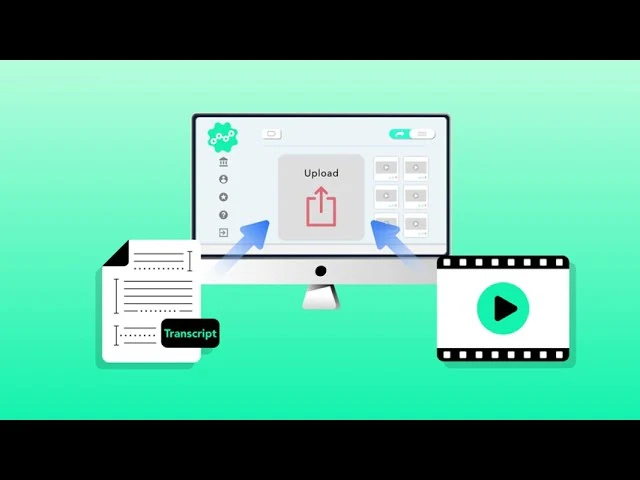
Upload the audio or video file
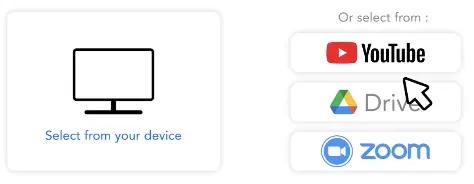
Upload the audio or video file that matches your transcript. Clear voice recordings produce the best speaker separation results.
Import your transcript and enable speaker labeling
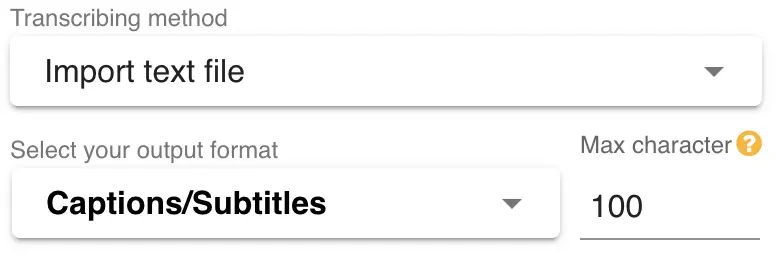
Under Text source, choose Import transcript. For Segmentation, select Label speakers. Taption will automatically align the transcript and identify speakers.
Review, rename speakers, and export
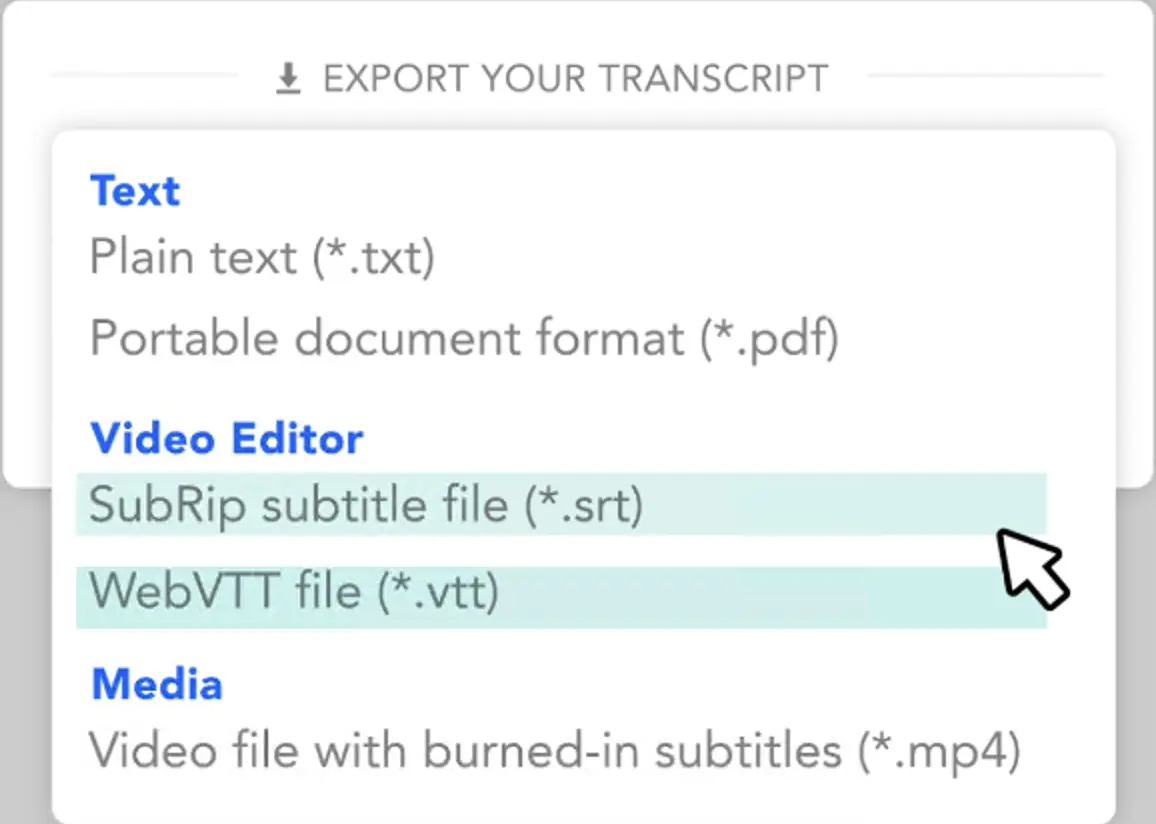
Review the transcript, rename Speaker A/B to real names (e.g., Host, Guest), and export as TXT or SRT. You can also extend the workflow to subtitle creation if needed.
Why use automatic speaker labeling?
When working with interviews or multi-speaker conversations, clarity matters more than raw transcription.
Taption lets you upload an existing transcript and automatically identify who spoke each line, saving hours of manual review.
Once labeled, transcripts become easier to read, search, analyze, and reuse — whether for research, publishing, or internal review.

Frequently asked questions
How is this different from basic transcript alignment?
This feature identifies speakers in addition to aligning text to the timeline.
Can I rename speakers?
Yes, speaker names can be updated once and applied across the entire transcript.
Does it work with overlapping dialogue?
Yes, with optional manual adjustment for complex sections.
Do exported files include speaker labels?
You can choose whether to include speaker names when exporting.
What languages are supported?
40+ languages are supported, with optional bilingual outputs.
How long does it take?
Most transcripts are processed within 5–10 minutes.