
Subtitle Translation
Translate Audio to Bilingual Subtitles
Translate video audio into editable bilingual subtitles in 50+ languages. Review timing, speaker labels, and terminology in one editor, then export SRT, VTT, TXT, or FCPXML. Built for creators, educators, businesses, and professional subtitle workflows.
Start your free trial!
Step 1: Upload & transcribe your video
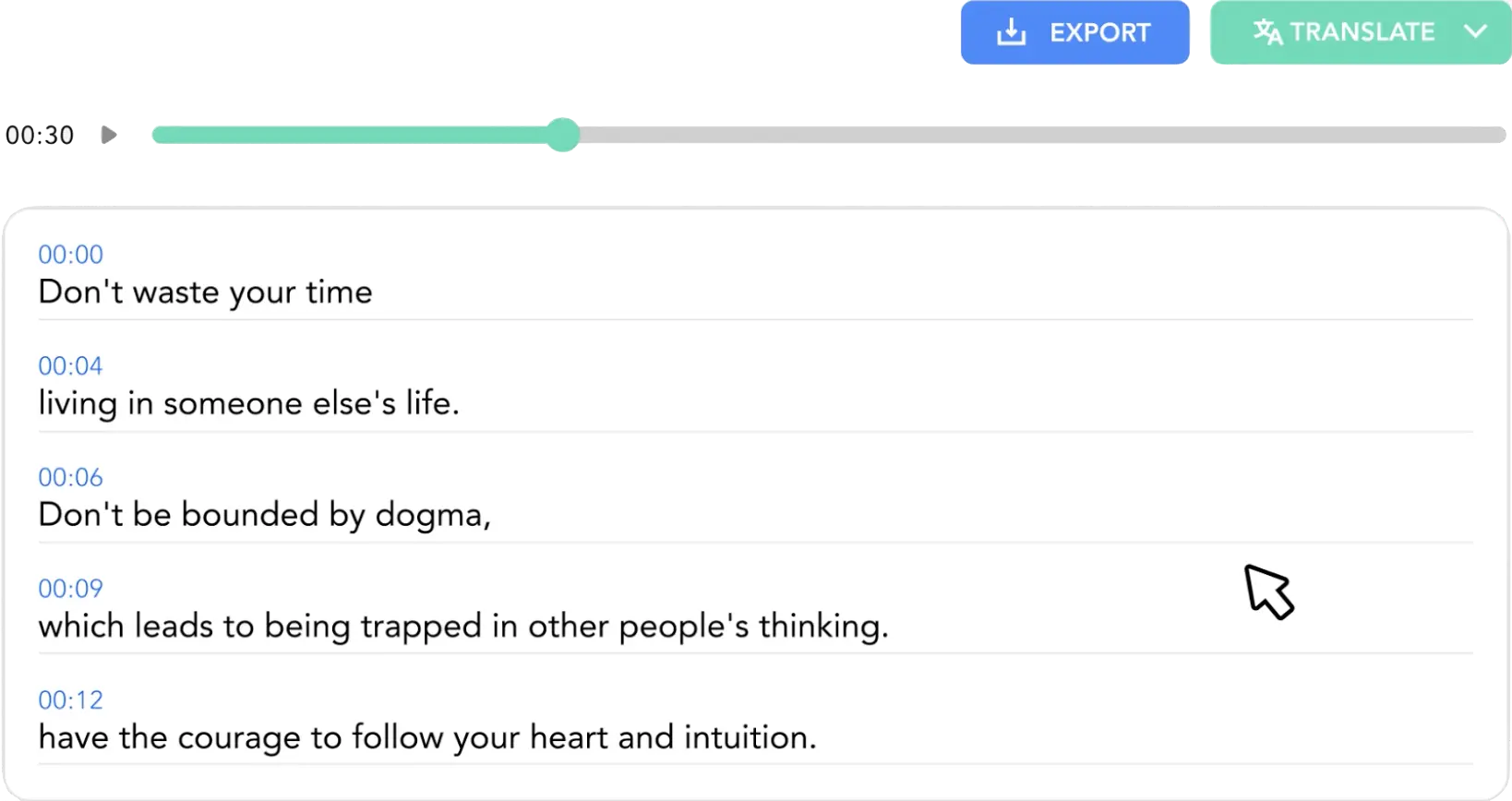
Upload your video file (MP4, MOV, AVI, and more) or paste a YouTube URL directly. Select the source language to auto-generate a precise, time-synced transcript of your audio.
Step 2: Translate in the editor
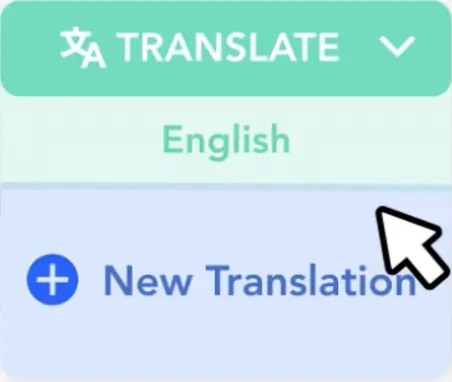
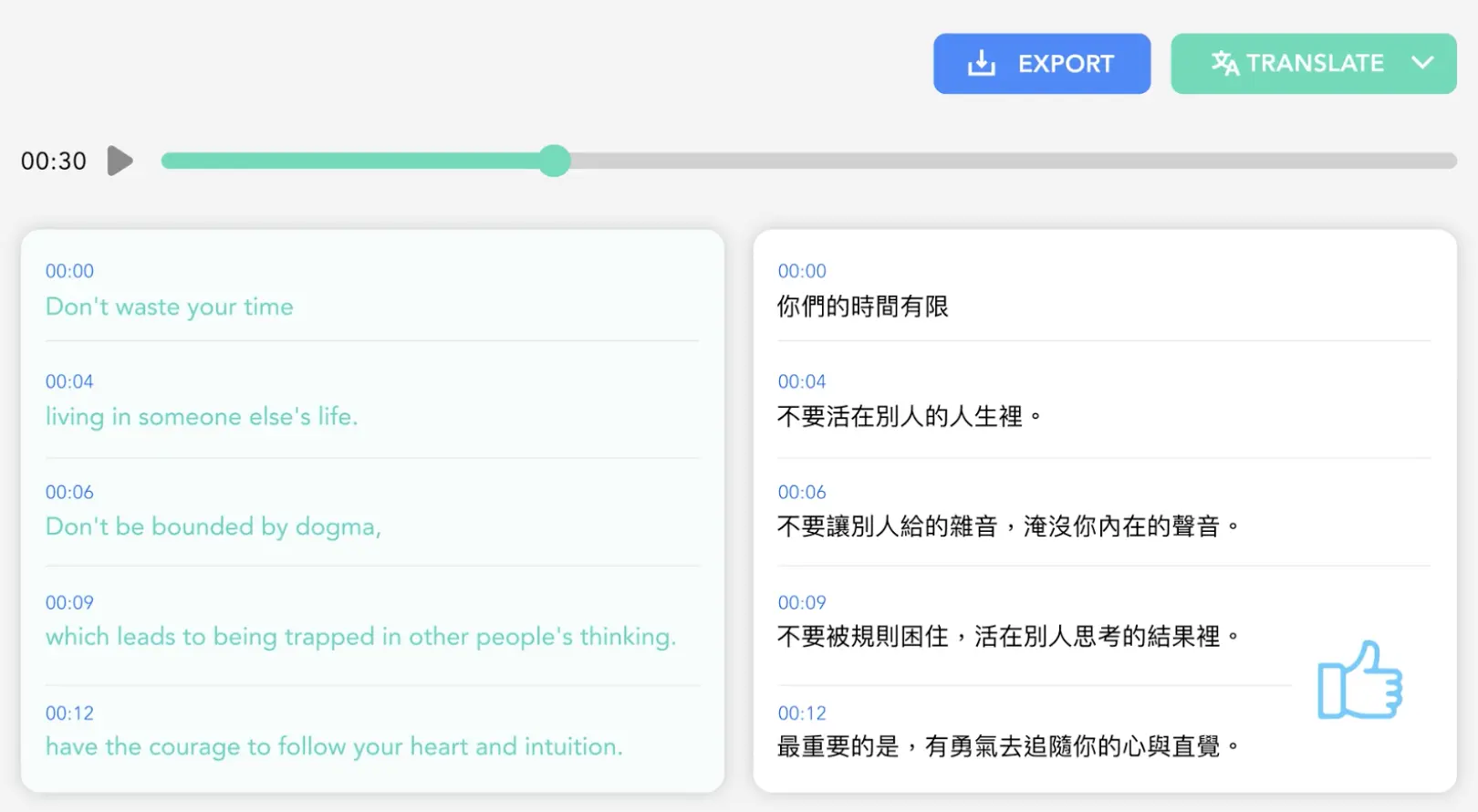
Open the text editor to review your transcript. Click Translate to convert your video into 50+ languages, including English to Spanish, Chinese, Japanese, and Korean, using neural machine translation.
Step 3: Review & export subtitles
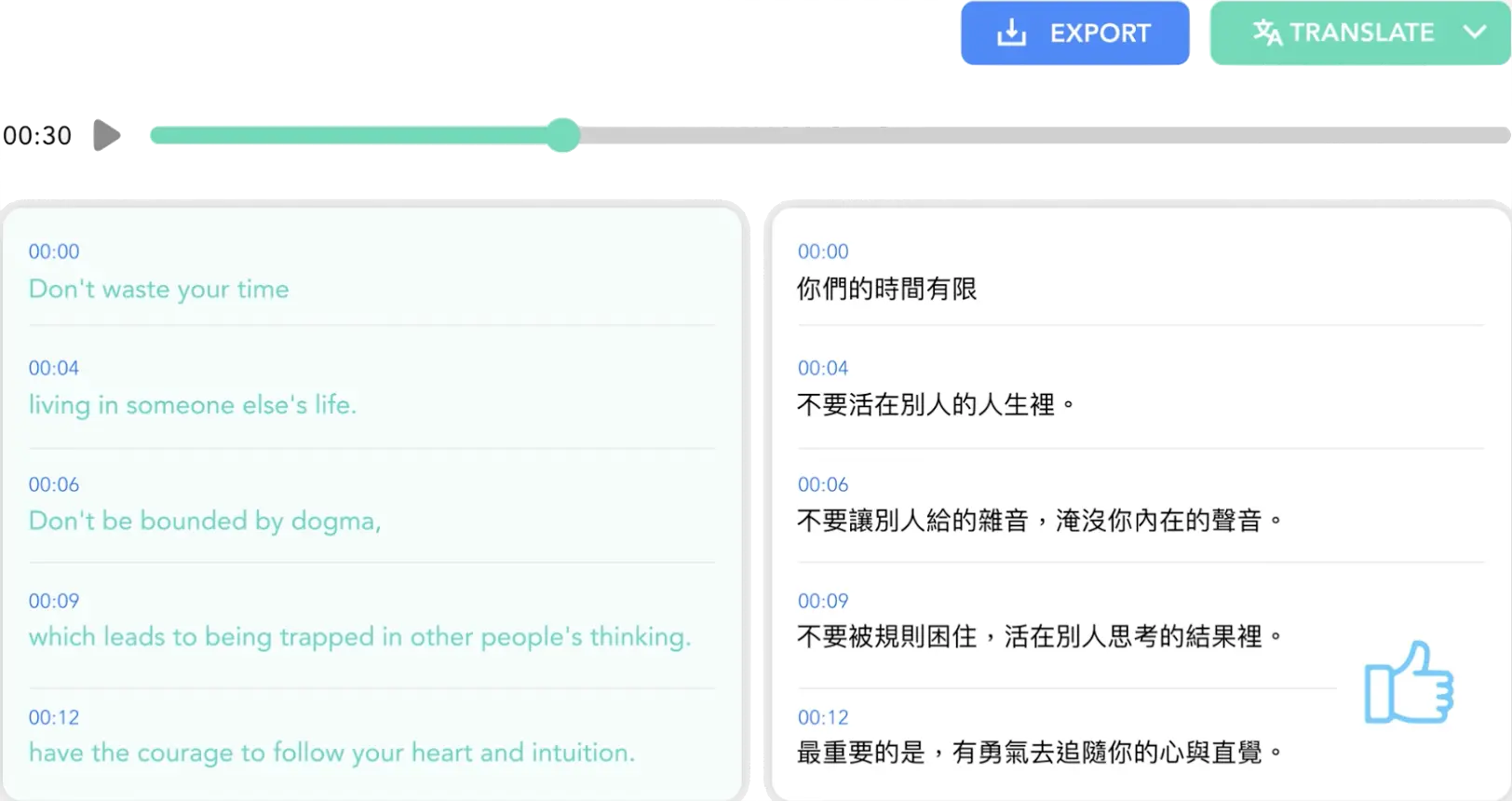
Refine your translated subtitles for perfect timing. Export professional caption files in SRT (SubRip), VTT, TXT, or FCPXML formats compatible with YouTube and video editing software.
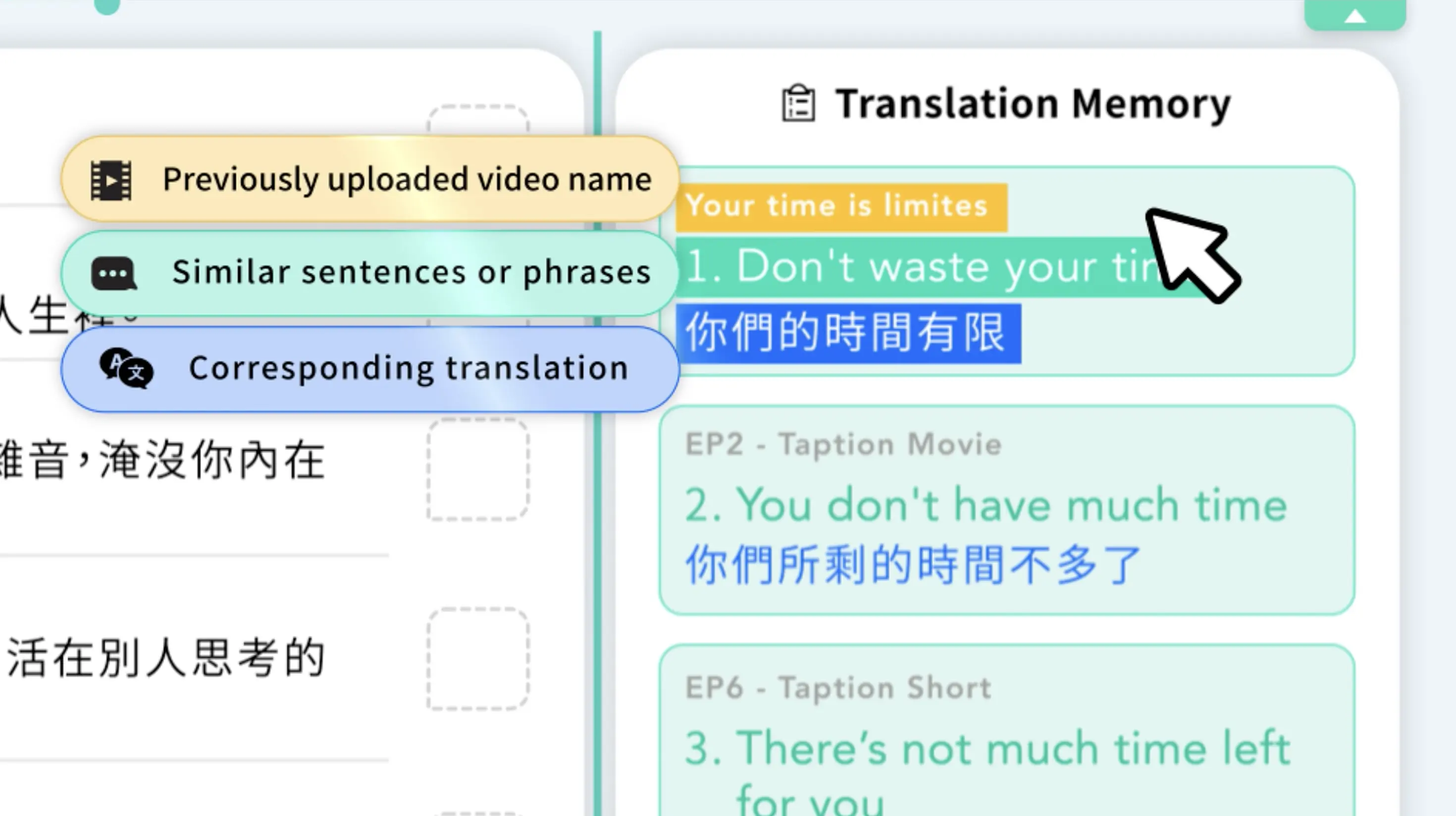
Smart translation memory: Avoid translating the same phrase twice
Taption automatically learns from your edits. When you've translated a sentence or technical term before, our AI remembers it and recommends a relevant past translation for review.
- Boost efficiency — reuse past translations for series or recurring content
- Ensure consistency — keep brand and technical terminology aligned across projects
- Smart matching — find similar phrasing and context, not only exact text matches
Customer-reported result: In feedback shared with Taption, a video creator said the combined AI draft and editing panel reduced a task that usually took about 3 hours to roughly 30 minutes. Individual workflow times vary.

Solving common subtitle translation problems
Taption's video translator addresses common subtitle translation challenges with precision tools:
- Timing Sync: Maintains precise time-codes so subtitles stay synchronized with video and audio
- Line Breaks & Reading Speed: Optimizes subtitle segmentation for comfortable viewing pace
- Editable Output: Review and refine translations before export to ensure accuracy
Taption works in your browser with no software download. Explore subtitle creation, compare pricing, or review how uploaded media is handled in our privacy policy.
YouTube video translation made simple
Localize videos you own or are authorized to use by pasting their YouTube URL:
- Direct Import: Import and transcribe the video from its URL.
- Discoverability: YouTube says translated metadata may improve reach and that subtitles help viewers who speak other languages find and watch videos. See YouTube's translation guidance.
- Studio Ready: Export SRT or VTT files for upload to YouTube Studio.
- Global Access: Give international viewers text in a language they understand.

SRT translation for professional video production
Fit translation into an existing post-production workflow while preserving subtitle timing:
- Timecode Integrity: Keep the original timing of imported SRT files while editing translated text.
- Export Options: Export SRT, VTT, TXT, or FCPXML for compatible editing and publishing tools; confirm the required format with your destination software.
- Professional Review: Refine terminology, line breaks, and timing before delivery.
Industry use: A film distributor uses Taption to translate movie subtitles, demonstrating use in a professional localization workflow.
Educational video translation for global learning
Support students and distributed teams with a reviewable course-localization workflow:
- Bilingual Subtitles: Display the original language and translation simultaneously for language learning and reference.
- Terminology Review: Correct academic or technical terms in the editor before publishing.
- Google Drive Integration: Import lecture recordings directly from cloud storage.
- Global Training: Localize corporate training materials for international teams.
Dubbing vs. subtitling: Why choose subtitles?
Subtitles and dubbing solve different needs. Choose subtitles when you want to preserve the original performance and publish reviewable text:
- Preserve Emotion: Keep the original speaker's voice, tone, and acting performance intact.
- Indexable Text: Caption files and transcripts provide text that search systems can index; pair them with translated titles and descriptions for stronger discoverability.
- Production Scope: A subtitle workflow can be simpler when replacement audio is not required, although cost and time vary by project.
- Accessibility: Reviewed captions can support deaf and hard-of-hearing audiences by including speech, speaker identification, and meaningful sounds; dubbing does not replace captions.
Frequently asked questions about video translation
Does Taption dub the voice or translate subtitles?
Taption focuses on subtitle translation and transcription. It preserves the original audio while creating editable bilingual subtitles. Subtitles can support language learning, accessibility, and discoverability when they are reviewed and published with appropriate metadata.Is Taption helpful for video accessibility and compliance requirements?
Taption can generate an editable caption draft. For accessibility, review the wording, timing, speaker labels, and meaningful non-speech sounds before publishing. The W3C caption guidance explains why captions include more than translated dialogue. For legal or contractual requirements, use a qualified human reviewer and verify the standard that applies to your project.What is AI video translation and how does it work?
AI video translation first transcribes speech into time-synced text, then translates that text into a selected language. In Taption, you review the transcript and translation in the editing panel before exporting bilingual subtitles or translated captions. Time savings depend on audio quality, language pair, terminology, and the amount of human review required.Can I translate YouTube videos directly?
Yes. Paste the URL of a YouTube video you own or are authorized to use, select the source language, and review the transcript before translating it. You can then export SRT or VTT files for YouTube Studio.What languages does Taption support for video translation?
Taption translates videos into 50+ languages, supporting both common and niche dialects. Our supported languages include English, Spanish, Chinese (Mandarin), French, German, Japanese, Korean, Portuguese, Italian, Russian, Arabic, Dutch, Polish, Turkish, Swedish, Vietnamese, Thai, Indonesian, Hindi, and many more. We support any-to-any translation, meaning you aren't limited to just English. Popular pairs include English to Spanish, Chinese to English, and Japanese to English.How accurate is Taption's video translation?
There is no single accuracy percentage that applies to every video. Results vary with audio quality, accents, language pair, specialized terminology, and source-transcript quality. Taption provides the AI draft and a synchronized editing panel so you can correct names, terminology, line breaks, and timing before publication. Human review is especially important for films, branded content, and accessibility deliverables.Can I create bilingual subtitles with source and translation?
Absolutely! Taption excels at generating bilingual subtitles that display both the original language and translation simultaneously. This is perfect for language learning, international audiences, or accessibility. You can customize the styling, positioning, and formatting of bilingual subtitles before exporting to SRT, VTT, or embedded formats.What subtitle formats can I export?
Taption exports SRT (SubRip), VTT (WebVTT), TXT, and FCPXML, plus bilingual subtitles and translated transcripts. Import support differs by editor and platform, so confirm the required format in your destination software before delivery.Do Taption's AI-translated subtitles still need human review?
Yes. Taption creates an editable translation draft, but you should review names, terminology, context, timing, and line breaks before publishing. Film distribution, branded content, and accessibility projects should receive a qualified final review.