
Script to Subtitles Auto-Sync
Turn Scripts into Subtitles Instantly
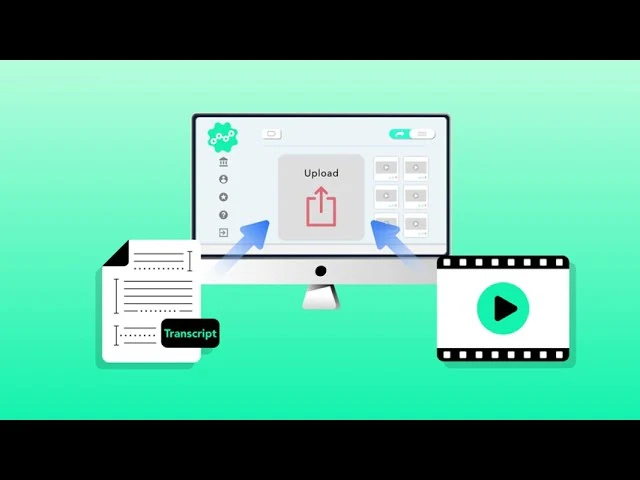
Already have a script or transcript? Skip the manual typing. Upload your TXT or SRT file and Taption will automatically sync the text to your video, generate accurate timestamps, and segment lines for you.
AI forced alignment & time-coding
Stop dragging subtitles manually. Upload your script (TXT) alongside your video. Taption uses forced alignment technology to sync text with real audio waveforms, generating accurate, time-coded SRT subtitles automatically.

One-click translation & bilingual export
Expand your reach globally. After syncing, use subtitle translation for 40+ languages and export dual-language SRT files for international audiences or language learning.

Custom styling & burn-in subtitles
Customize fonts, colors, and backgrounds, then burn subtitles into MP4 to ensure consistent playback on Instagram, TikTok, and LinkedIn.

Flexible formats: SRT, VTT, TXT & MP4
Import TXT or existing SRT files, then choose from supported export formats: SRT, VTT, TXT, PDF, FCPXML, or an MP4 video with burned-in subtitles.
Security & privacy
Uploaded media and transcripts are used only for subtitle syncing and editing. Files can be deleted at any time—see Taption's privacy policy for details.
1. Upload your audio or video
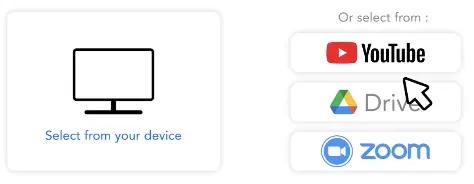
Upload the media file you want to caption. For the best alignment results, ensure the video language matches your text file.
2. Import your TXT or SRT
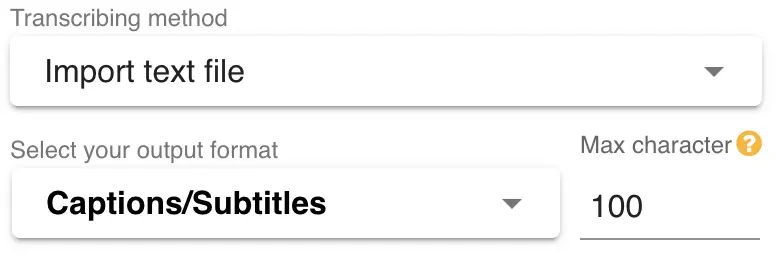
Select Import Text File and choose Captions/Subtitles as your output. Taption uses Forced Alignment (AI timestamp sync) to align your text with the audio, automatically adding timestamps and line breaks.
3. Edit and export
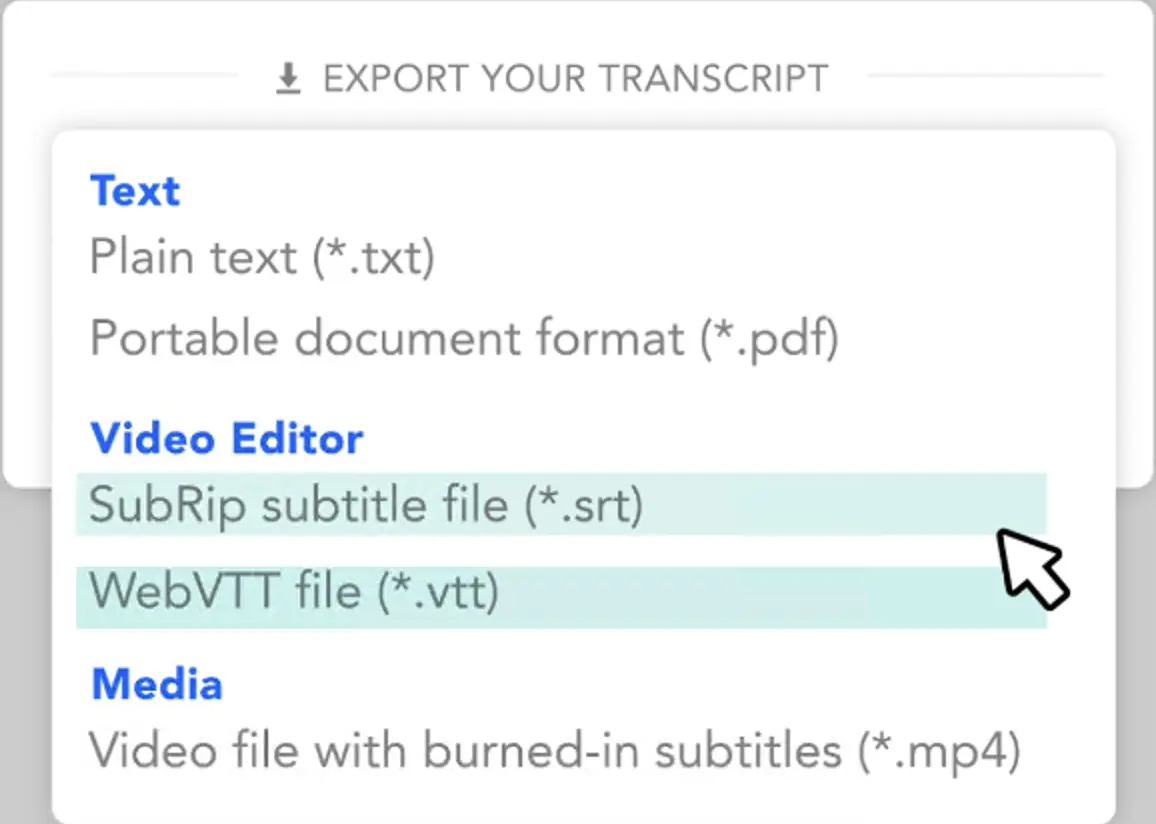
Review the synced subtitles in our editor. Fine-tune timing if needed, translate into other languages, and export as SRT, VTT, or a hardcoded MP4 video.
Why import TXT instead of Speech-to-Text?
Manual Syncing: Accurate but takes hours of tedious work.
Standard Speech-to-Text: Fast, but often requires fixing typos and misheard terms.
Taption Auto-Alignment: Subtitle text follows your imported transcript exactly. AI handles timing and segmentation; if the media and transcript differ, you can review and fine-tune the result in the editor.
Media workflow example: One media team already had reviewed transcripts in its workflow. Importing them into Taption preserved the approved wording and removed the manual step of matching every line to the timeline.
See how to turn a script into time-synced SRT subtitles in minutes:

Frequently asked questions
How does TXT to SRT differ from standard auto-captions?
Auto-captions generate text from speech, which can introduce recognition errors. TXT to SRT uses your own transcript as the subtitle text while AI handles timing and segmentation. If the media and transcript differ, review and fine-tune the result in the editor.
What if my text doesn't match the audio exactly?
Taption can handle small differences such as filler words or minor edits. You can always fine-tune alignment in the editor.
Which file formats can I import?
You can import TXT transcripts and existing SRT subtitle files.
What formats can I export?
Export subtitles as SRT, VTT, or burn them directly into an MP4 video.
Can I create bilingual subtitles?
Yes. After syncing, translate subtitles into another language and export as bilingual SRT or hardcode both languages into the video.
Can I use this for free?
Yes. Taption offers a free trial with auto-alignment and export credits. See Taption pricing for current plan details.