
AI Audio to Video Converter
Automatically convert MP3 audio files to MP4 videos with subtitles and custom background images, perfect for podcasts, meetings, and online course content
Start Free Trial
Step 1: Convert audio to text
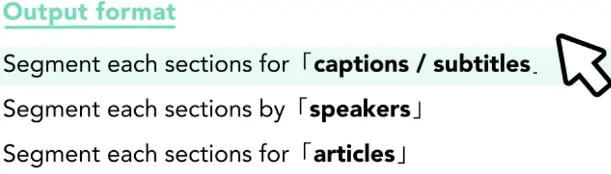
Upload MP3, WAV, or other audio files, and AI automatically converts the recording content into text segments as "subtitles", supporting 50+ language recognition
Step 2: Upload HD background image
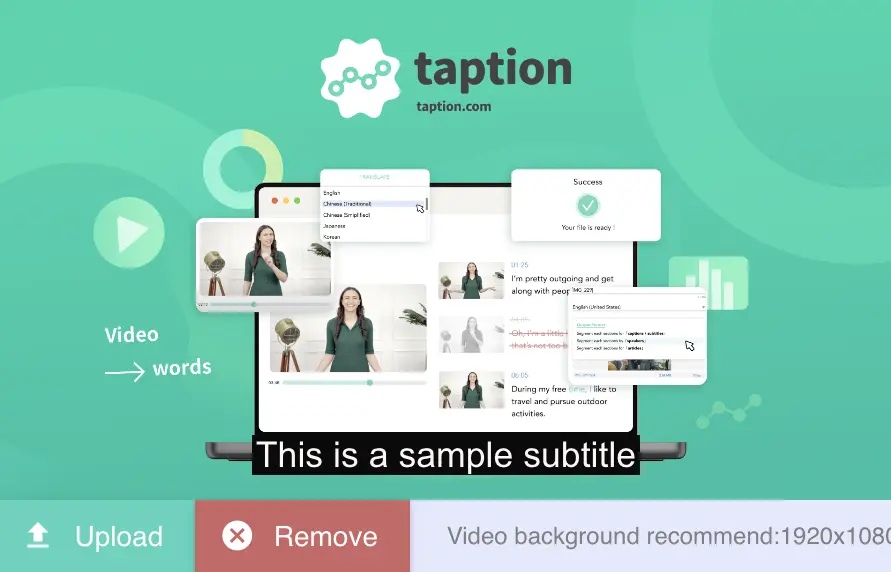
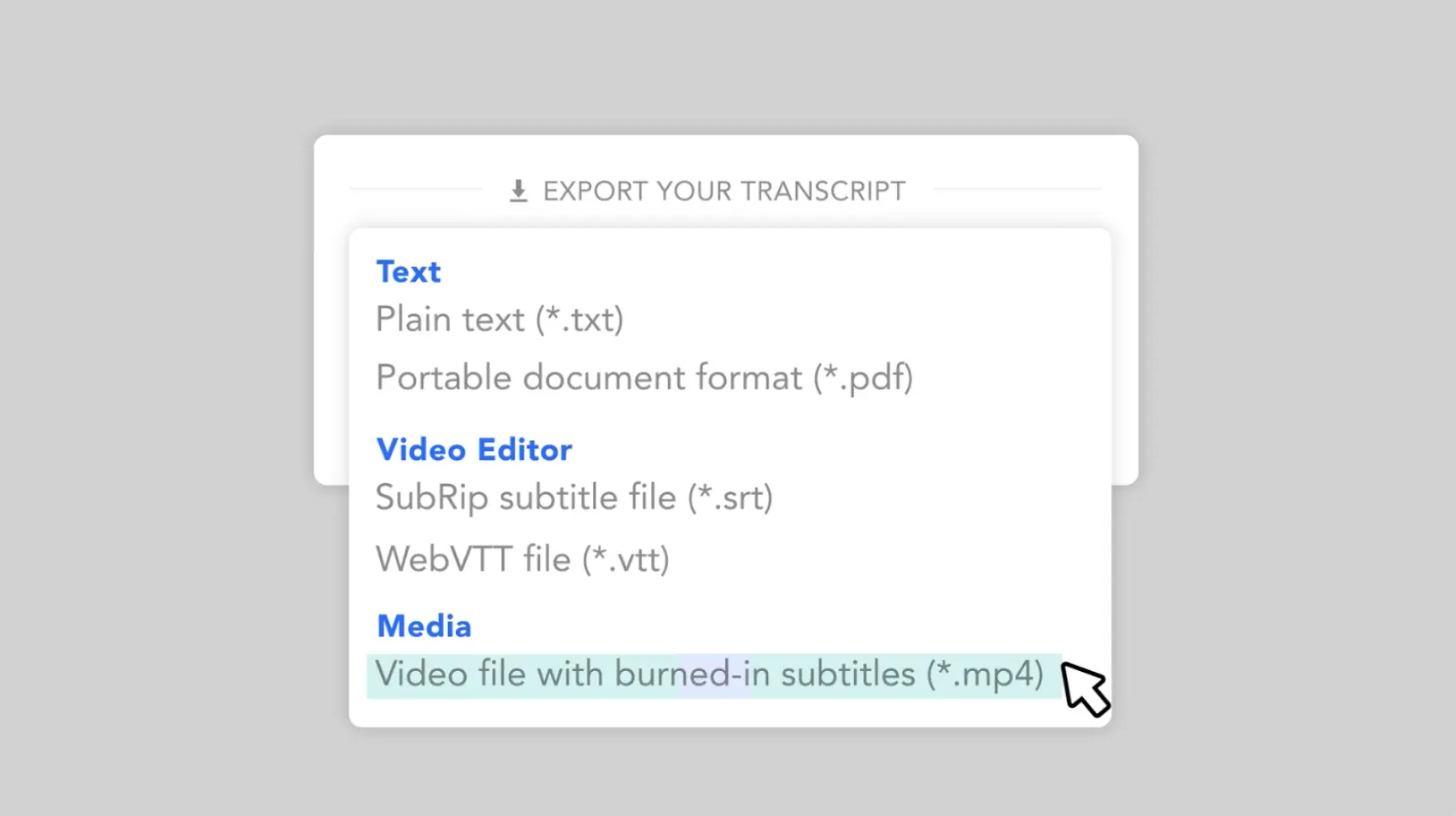
After correcting the auto-generated subtitle text, select "Export MP4", upload a beautiful HD image as the video background to create a professional visual effect
Step 3: Customize style and export

Set subtitle font, size, color, and position, preview the effect, and export a customized subtitle video, perfect for publishing on YouTube, Facebook, and other platforms
Complete audio to video conversion tutorial
Converting audio to video takes only minutes, giving your audio content not just listeners but viewers too. Watch the complete tutorial to learn how to quickly create professional subtitle videos:

Frequently asked questions
How long does audio to video conversion take?
Usually only 3-5 minutes. After uploading your audio file, AI automatically performs speech-to-text conversion, then you just upload a background image, adjust subtitle styles, and quickly export the video.What audio formats are supported?
Taption supports all major audio formats including MP3, WAV, M4A, AAC, FLAC, OGG, etc. You can also directly upload video files containing audio (such as MP4, MOV) for processing.Can I customize subtitle styles?
Absolutely! You can freely adjust subtitle font, size, color, position, background color, transparency, etc., to create customized videos that match your brand style.How accurate are the generated subtitles?
Our AI speech recognition accuracy can reach 90-98%, with actual accuracy depending on recording quality, accents, and technical terminology. You can easily edit and correct subtitle content before exporting.Is it suitable for podcast videos?
Perfect! Many podcasters use Taption to convert audio content into subtitle videos for publishing on YouTube, Facebook, and other platforms, significantly increasing content exposure and reach.What are the recommendations for background images?
We recommend using 1920x1080 (16:9) or 1080x1920 (9:16) HD images. You can use brand logos, theme illustrations, gradient backgrounds, or related photos, ensuring the image is clear and visually comfortable.What is the exported video format?
The export format is MP4 (H.264), which is the most universal video format, supported for upload and playback on all major platforms (YouTube, Facebook, Instagram, TikTok).Can it be used for commercial purposes?
Yes! Taption paid plans support commercial use. You can use the generated videos for commercial podcasts, online courses, corporate training, marketing content, and other purposes.Is a free trial available?
Yes! We offer a free trial plan for you to experience the complete audio to video conversion features. The free plan includes basic speech-to-text and video export functionality.How can I improve subtitle accuracy?
We recommend using high-quality recording equipment, reducing background noise, speaking clearly, and avoiding multiple people speaking simultaneously. After upload, you can easily correct any errors in the editor to ensure perfect subtitles.Can I add multiple background images to one audio file?
Currently, each audio-to-video conversion supports one background image per project. However, you can create multiple versions with different backgrounds, or use our video editing features to combine multiple segments with different images.What video resolution and quality options are available?
Taption supports HD video export up to 1080p (1920x1080) resolution with customizable quality settings. You can choose between standard, high, and maximum quality based on your needs and file size preferences.How do I add my audio to YouTube or social media?
After converting your audio to video with Taption, simply download the MP4 file and upload it directly to YouTube, Facebook, Instagram, TikTok, or any other video platform. The generated video includes embedded subtitles and your custom background, making it ready for immediate publishing.